When Airtable Forms Are Not Enough: Why Use Fillout?
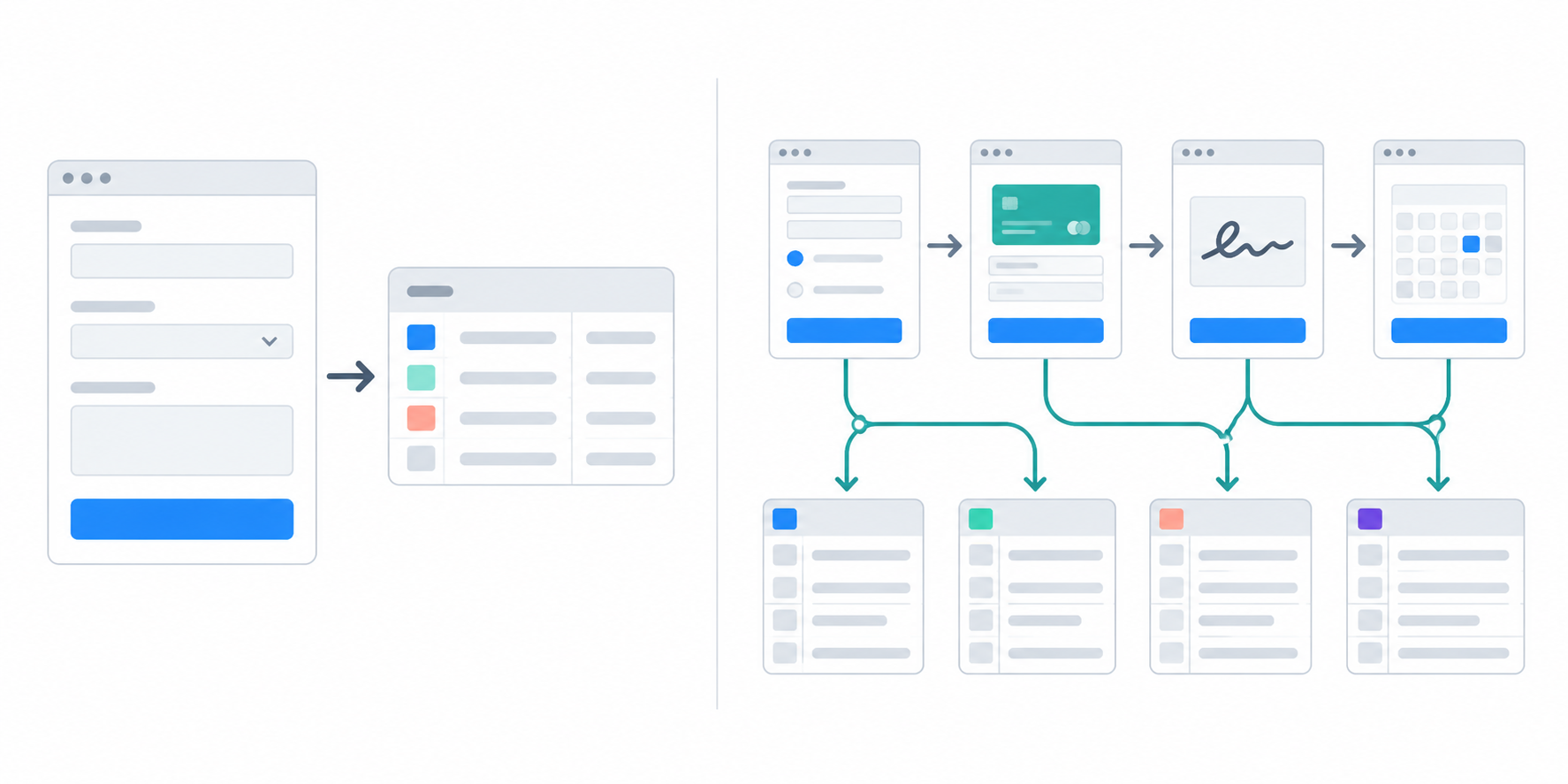
Airtable Forms work well for a simple submission: someone fills in the form and Airtable adds their response as a new record. If the form needs to update records, create related records, take payment, collect a signature, or schedule a call, Fillout can handle those steps while keeping Airtable as the database.
Here are the situations where Fillout is a better fit than Airtable Forms.
When you need to update an existing record
If you want someone to update an existing record through a form, Airtable's form does not do that. Each submission creates a new record.
That becomes a problem when a client needs to correct their details, add a missing document, approve a request, or update a status.
Fillout shows the current values from an Airtable record in the form. The person changes the fields they need and submits the form, and Fillout writes those changes back to the same record. See Fillout's update form documentation.
For internal users who already have Airtable access, an Interface record detail page can also update an existing record. Fillout is more useful when the person is external or needs a client-facing form. If you want to stay inside Airtable, see how to update existing Airtable records with forms.
When one submission needs related records
Airtable Forms add the submission to one table. Take an order form as an example: the customer can select several products, and Airtable stores those selections on one Orders record. If each product needs its own quantity, price, or status, you need a separate Order items record for each one.
To build this inside Airtable, send the form response to Orders first and use an automation to create one Order items record for each selected product. See how to add multiple records using a single Airtable form and how to set up a form that adds data to multiple Airtable tables.
Fillout creates linked records from the same form, including a new related record when the person needs to add one. Its searchable record picker also gives people more control over the records and details they see. See Fillout's linked-record instructions. The new records stay connected to the Airtable structure you already built.
When the form needs pages or save-and-resume
Airtable Forms use one page. Conditional field visibility can show questions when they become relevant, but the form has no separate pages, branching paths, or progress steps.
Airtable Forms also do not save a partial submission so someone can close the form and return to it later.
Fillout gives the form multiple pages, conditional paths, and a way for someone to save an unfinished form and return later. This is useful for applications, onboarding, client intake, and any form that takes more than a few minutes to complete. See how to let users save progress while filling an Airtable form.
When the total needs to change while someone fills out the form
Airtable calculates a formula, lookup, or rollup after the form creates a record. The respondent does not see a live quote or total while the form is open.
This matters when the person chooses services, products, ticket quantities, or other options and needs to see the amount before submitting.
Fillout shows calculations inside the form. The respondent can see a quote, deposit, score, or total before submitting.
When the form needs a payment
Airtable Forms can collect payment information, but they do not process the payment inside the form.
Fillout connects the form to Stripe, collects the payment, and sends the amount, currency, and payment details to Airtable. See Fillout's payment documentation for the current payment options.
When the person needs to sign or book a time
Airtable does not have a signature field for signing an agreement, and Airtable Forms do not manage calendar availability.
Fillout collects a signature and adds scheduling to the same workflow. It connects the booking step to a calendar and sends the appointment information to Airtable. Check Fillout's scheduling documentation for the current calendar, reminder, cancellation, and payment options.
If the form needs a signature on an existing document, see how to collect e-signatures in Airtable. If the available slots need to be managed directly inside Airtable, see how to manage bookings and prevent double bookings in Airtable.
When people need to see information without editing it
Airtable can prefill a field through a URL, but the value is either editable or hidden. The value is also part of the URL, so it should not be treated as private or tamper-proof.
Fillout displays values such as a project name, customer name, or account manager as text while keeping them out of the editable questions. It also fetches information from an Airtable record before the form opens.
If each person needs to sign in and see information from their own Airtable record, Fillout also offers login forms and pre-fetching from Airtable. These features depend on the Fillout plan.
See how to show prefilled read-only fields in Airtable forms for the difference between the Airtable Forms workaround and the Fillout option.
When the form needs a better client-facing experience
Airtable's form builder supports basic layout settings, a cover image, and a logo on paid plans. It does not provide the same control over custom themes, fonts, images throughout the form, picture choices, custom domains, or branded completion pages.
Fillout offers richer styling, images inside the form, picture choices, custom endings, redirects, and PDF generation. Some branding and completion features depend on the Fillout plan, so check the current feature and pricing list before choosing a plan.
This is useful when the form is part of a public client experience rather than an internal data-entry screen. For large or image-heavy Airtable forms, see Airtable's form size and image limitations.
When one form needs more after submission
Airtable shows a confirmation message, redirects to one URL, or sends an email through an automation. It does not send people to different endings or create a PDF based on their answers from the confirmation screen alone.
Fillout offers custom endings, different paths, redirects, respondent emails, and PDFs as part of the form workflow.
For Airtable Forms options, see how to show a record ID after an Airtable form submission and how to send a confirmation email after an Airtable form submission.
When duplicate submissions need to be stopped
Airtable accepts a form submission before an automation can look for a matching record. You can find and review duplicates afterward, but Airtable Forms do not check the existing table first and block the submission.
Fillout includes duplicate-submission prevention on supported plans. If the same person or request should only be submitted once, check that feature and its plan requirement. For Airtable's cleanup options, see how to prevent and remove duplicate records in Airtable.